Maestro: E2E tests for Flutter that go beyond your app
Unit tests covered. Widget tests covered. Pipeline green. And yet you’re still nervous something will break in production because you’ve never validated the full flow on a real device.
That’s what E2E testing solves. But in Flutter, getting there has its friction.
The pain of E2E testing in Flutter
The official option is integration_test. It works, but it has a cost: before running anything, the compiler has to build the entire app in test mode. A basic suite easily takes 4 minutes to compile in CI. And if the environment has any issue — Xcode version, emulator, environment variables — the test fails before running a single line of yours.
There are native options: Espresso on Android, XCUITest on iOS. They’re powerful, but it means writing Kotlin or Swift in a Flutter project. And maintaining two separate suites for the same app.
But the quietest problem is something else.
You get to the moment where iOS asks for notification permissions. The test freezes. You search for the element in the widget tree: it doesn’t exist. It’s not a bug in your code — it’s the limit of the tool. The permission dialog belongs to the operating system. It lives outside your app. And tools that run inside your app can’t touch it.
All your E2E coverage stops right at the most critical moment of onboarding.
What is Maestro
Imagine that instead of code inside your app, there’s a human finger touching the screen. That finger knows nothing about Flutter, React Native, or whatever language the app is written in. It only sees what’s on the screen — and it can tap anything the user can tap.
That’s, architecturally, what Maestro does. Instead of injecting itself into your app’s process, it operates at the device level. It sees the screen. Taps. Types. Swipes. And it can interact with any visible element, regardless of who drew it.
Flows are described in YAML. No Kotlin, no Swift, no Dart:
# launch_app.yaml
appId: xyz.albertomontesdeoca.oposas
---
- launchApp
- tapOn: "Entrar como invitado"
- assertVisible: "Inicio"
To run it, one command from the terminal:
maestro test launch_app.yamlWorks on simulators and physical devices (with some limitations). Install on macOS with brew install maestro; iOS tests require macOS due to Xcode. For Android or Windows and Linux, check the official docs.
The magic: native interactions
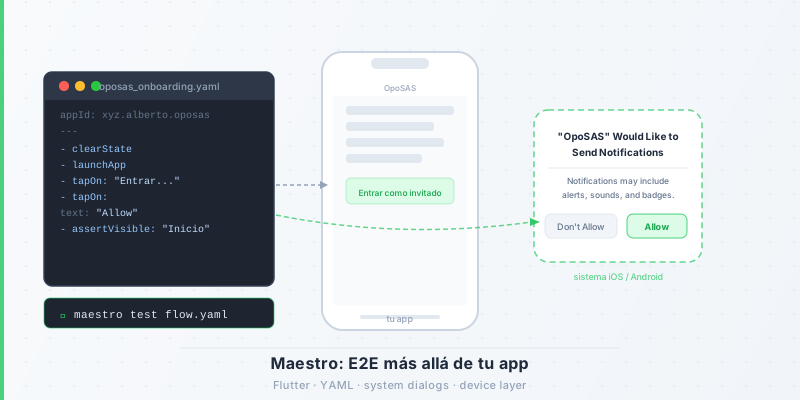
System permission dialog. The app just asked for permission to send notifications. iOS shows its own dialog — outside your app, outside the widget tree. With Maestro, it’s one line:
- tapOn:
    text: "Allow"
That tapOn doesn’t ask Flutter anything. It asks the device what’s on screen. And the device answers: there’s a button that says “Allow”. It taps it.
System keyboard. Typing in a search field using the native keyboard:
- tapOn:
    id: "search_field"
- inputText: "temario SAS 2024"
Notification tray. The app sent a push notification and the flow needs to verify it appears. The same YAML works on iOS and Android — Maestro abstracts the gesture difference between platforms:
- openNotifications
- tapOn: "Nueva pregunta disponible"
Maestro doesn’t talk to your app. It talks to the device. That’s why it can tap anything the user can tap.
A real example: OpoSAS
OpoSAS is a study app for Spanish civil service exams that I have in production. Its onboarding flow hits exactly the hard case: the notification permission dialog at the end of the wizard.
The complete flow, from scratch:
# maestro/oposas_onboarding.yaml
appId: xyz.albertomontesdeoca.oposas
---
- clearState                  # Clears previous state for a deterministic flow
- launchApp
- tapOn: "Entrar como invitado"
- tapOn: "Siguiente"          # Onboarding step 1
- tapOn: "Siguiente"          # Onboarding step 2
- tapOn: "Empezar"            # End of onboarding
- tapOn:
    text: "Allow"             # Notification permission dialog (iOS/Android)
- assertVisible: "Inicio"     # Main screen is visible
The key is clearState: it resets the app to its first-install state. Without it, an app that remembers you already completed onboarding would skip straight to the home screen — and the permission dialog would never appear. Always use it for flows that depend on first-launch behavior.
To run it:
maestro test maestro/oposas_onboarding.yamlFlows live in a maestro/ folder at the project root. The OpoSAS codebase is private, but the YAML above is illustrative — adapt it to your app by changing the appId and the visible text strings in your onboarding.
It doesn’t matter what the app is built with
The same YAML works against a Flutter app, a React Native app, and a native iOS or Android app. Maestro doesn’t know or care about the stack.
This is especially relevant if your team has a QA engineer who doesn’t know Dart. They don’t need to learn the stack — just YAML. They can write and maintain flows without touching code.
When to use Maestro (and when not to)
Use it for:
- Critical user flows — login, onboarding, checkout. The things that, if they break, affect everyone.
- Any flow that touches system dialogs — permissions, native keyboard, notifications.
- Smoke tests in CI before a release — a small set of flows that confirm the fundamentals work.
And being honest about limitations:
- It doesn’t replace unit or widget tests. The testing pyramid still applies. Maestro lives at the top.
- Flakiness on slow animations. If a tap arrives before an animation finishes, the test can fail. The fix is adding
waitForAnimationToEndorwait: 2000before the next tap in steps that need it. - YAML debugging can be verbose for complex conditions. Maestro Studio helps a lot here — you can record flows visually and see in real time what’s happening on screen.
Maestro MCP
The Maestro team recently launched an MCP server that connects the tool with AI agents like Claude or Cursor. The idea: you describe in plain language the flow you want to test, and the agent generates the YAML, runs it on the device, and fixes it if it fails.
It’s especially useful for the initial creation of tests — identifying element IDs and screen structure is the most tedious part of writing flows from scratch — and for maintenance when the UI changes. More at maestro.dev/blog/maestro-mcp-an-introduction.
Remember that permission dialog that left the test frozen? That’s exactly how Maestro solves it. A tapOn: "Allow" that talks to the device, not the app.
To get started now: install Maestro with brew install maestro, open Maestro Studio, and record your first flow without writing a single line of YAML.